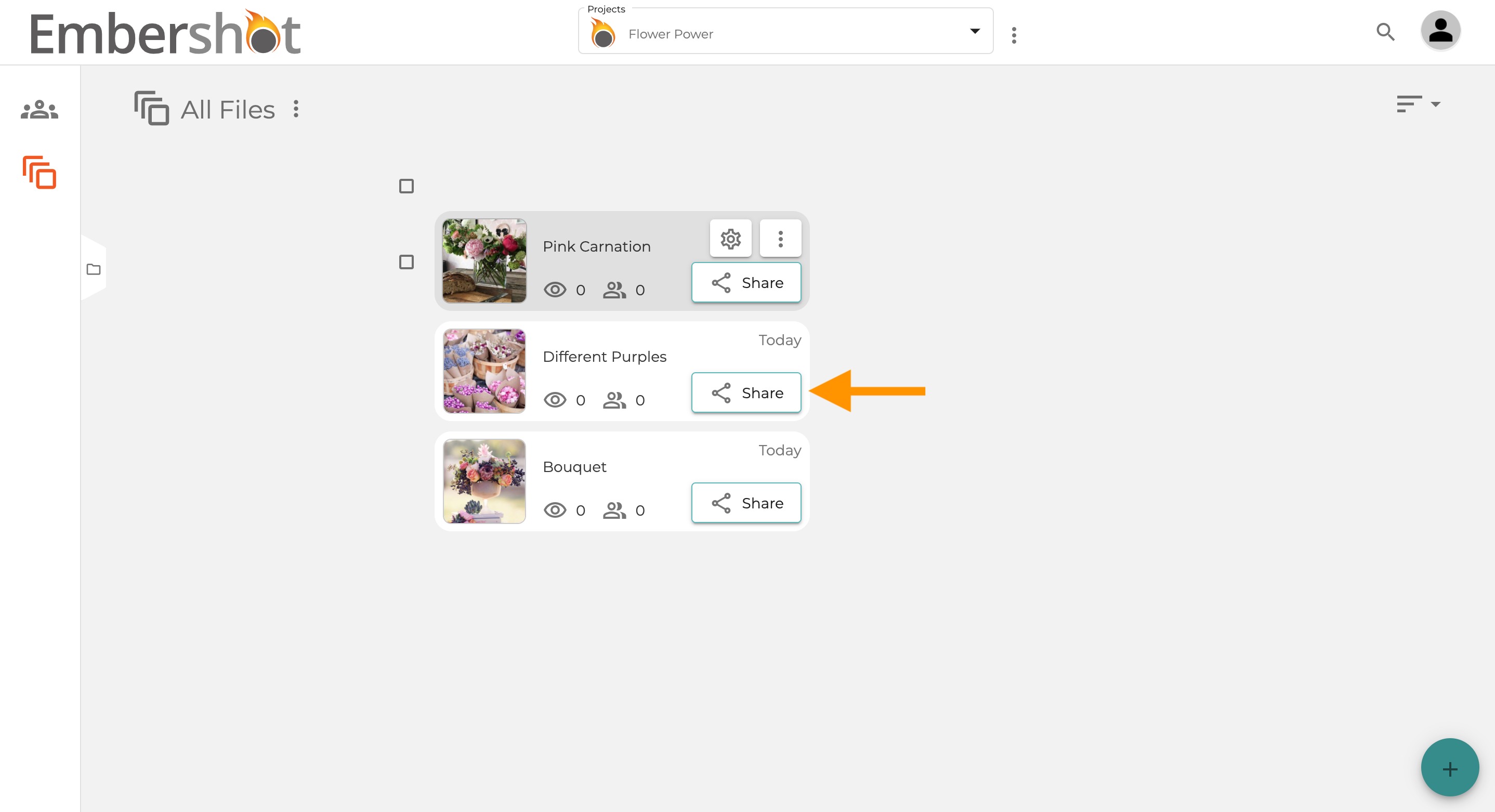
Step 1: Click 'Share'
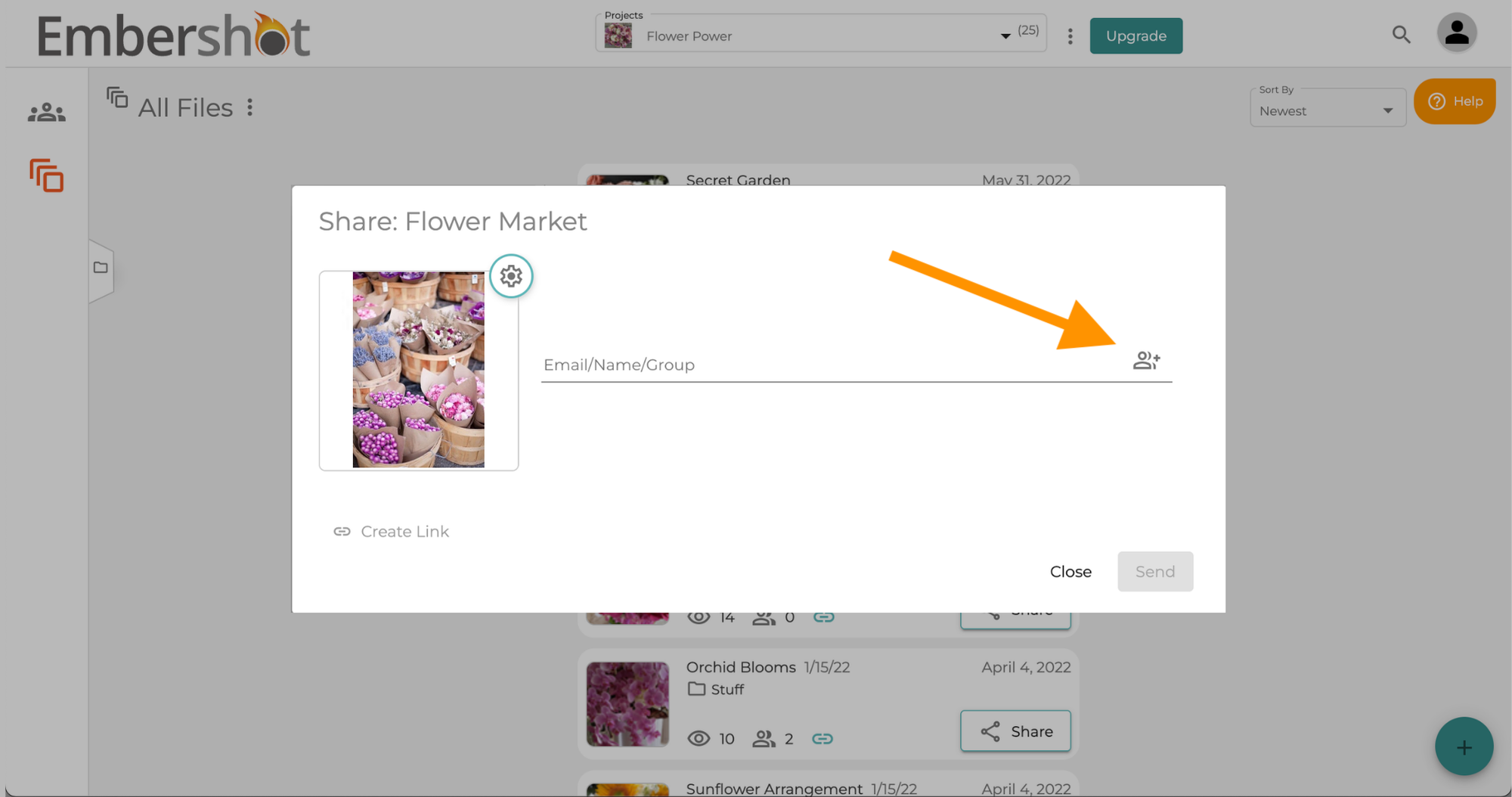
Step 2: Click the 'Add Multiple Users' icon
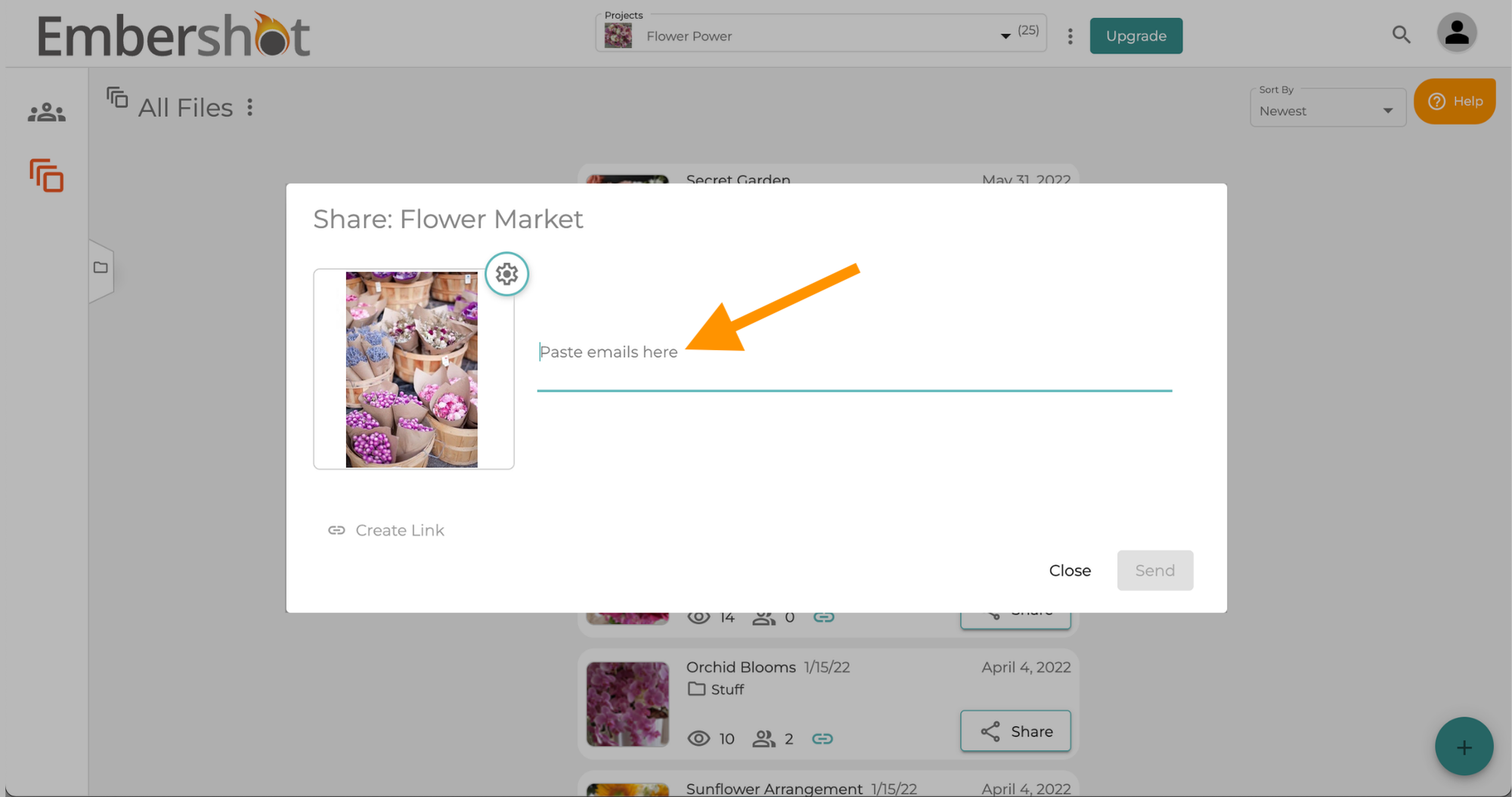
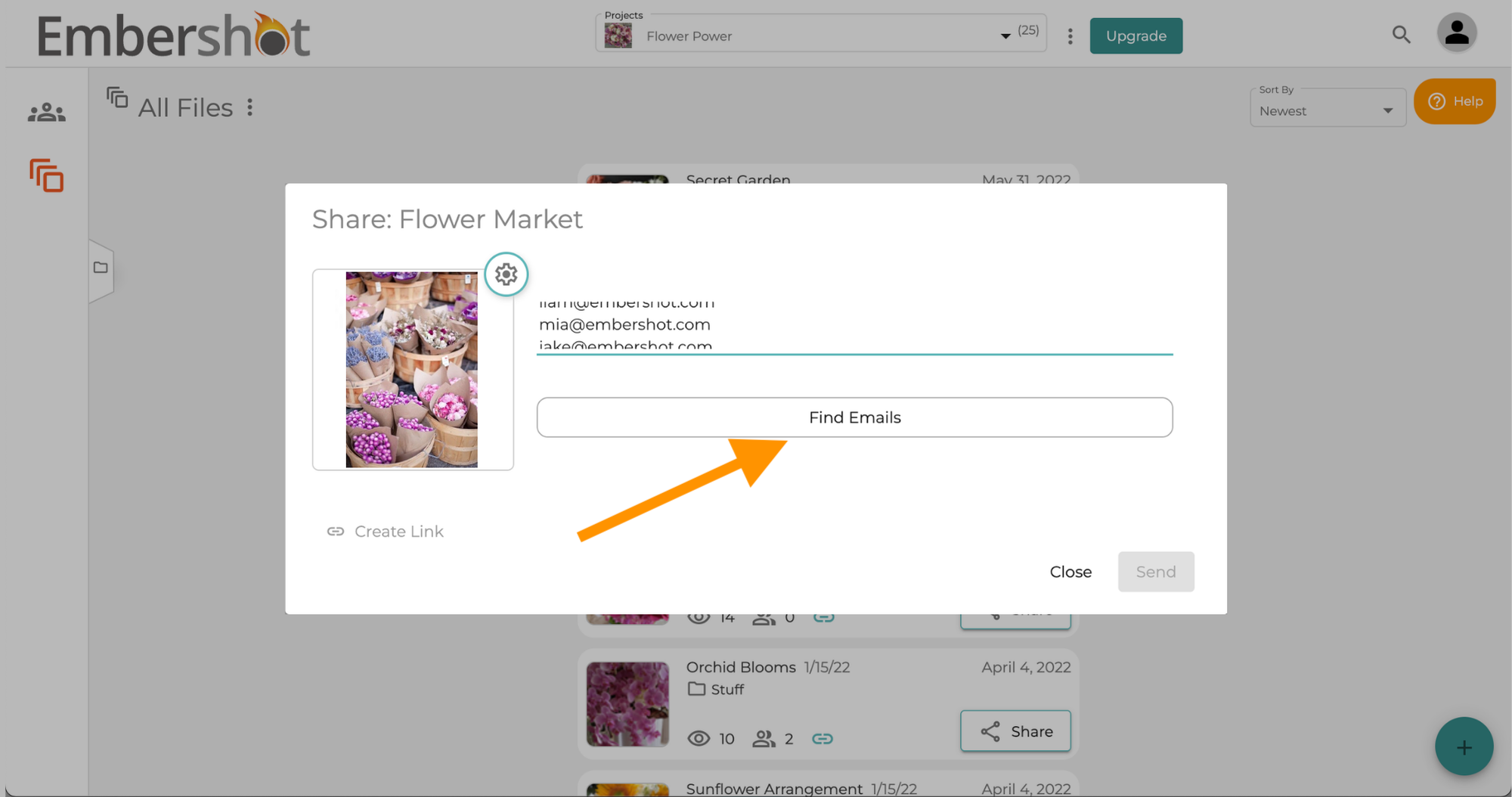
Step 3: Paste a list of email addresses
Step 4: Click 'Find Emails'
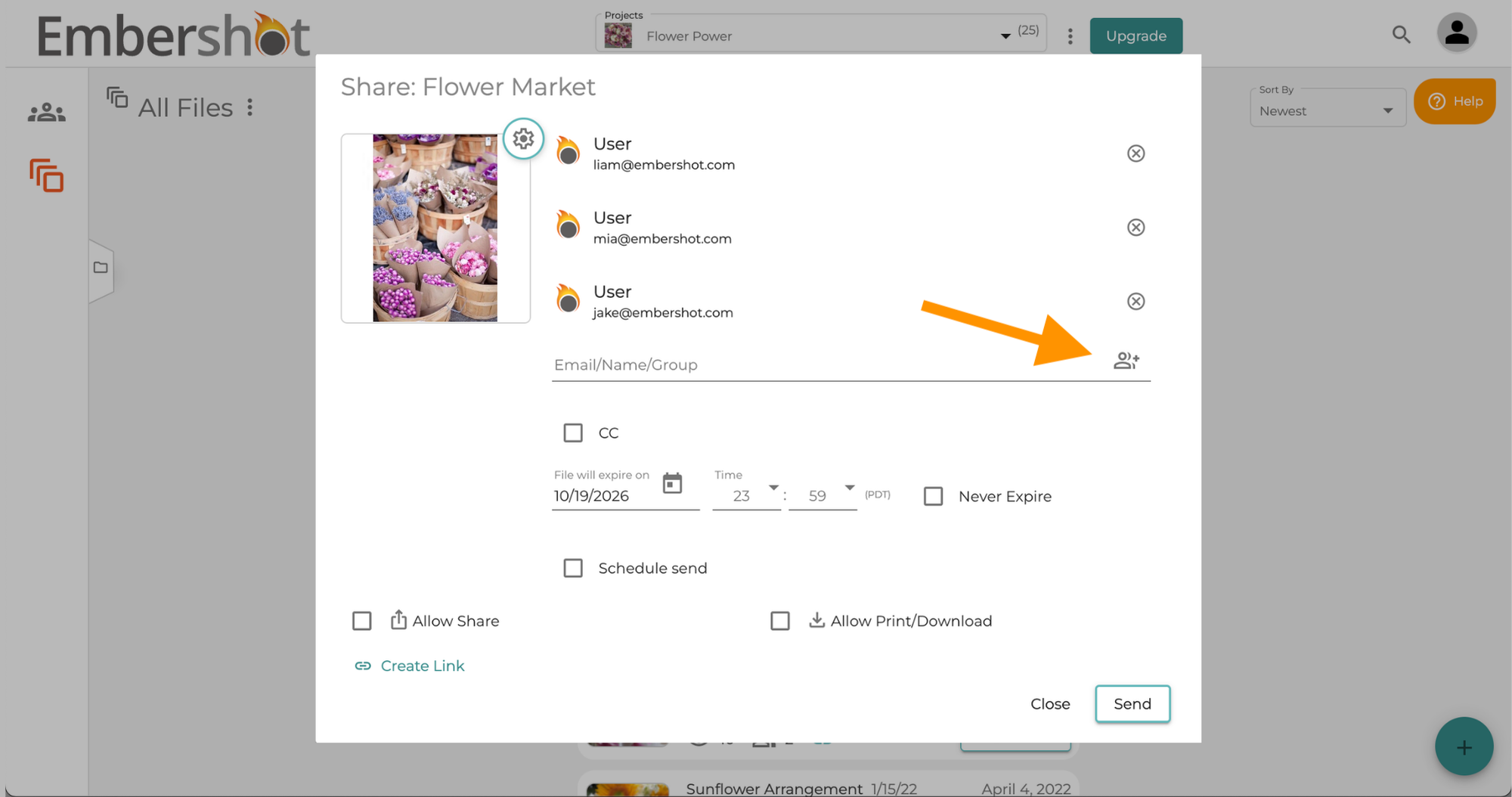
Step 5: The emails will automatically be parsed and entered separately into the Share Panel. Click the 'Add Multiple Users' icon if you need to add more users.
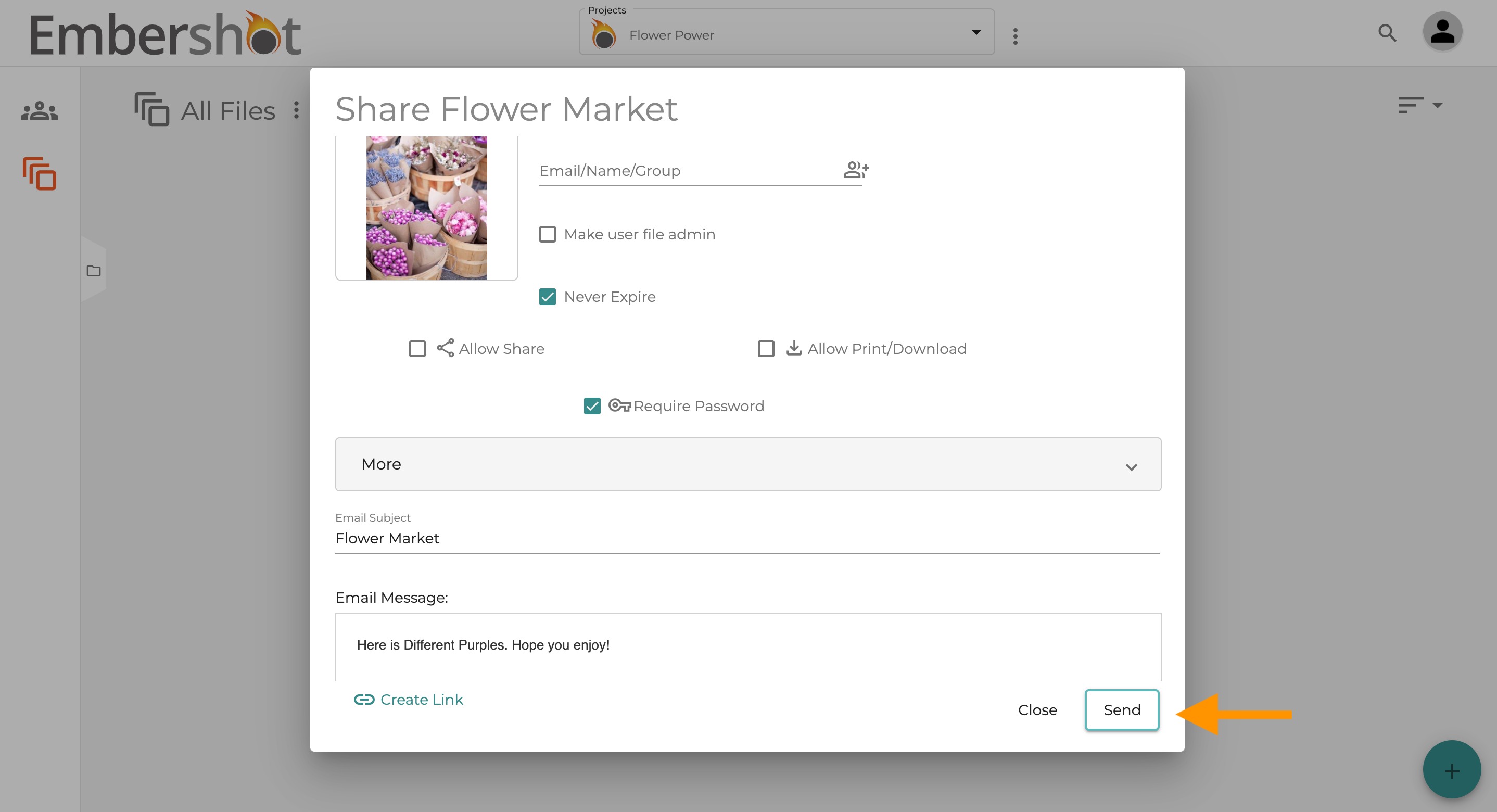
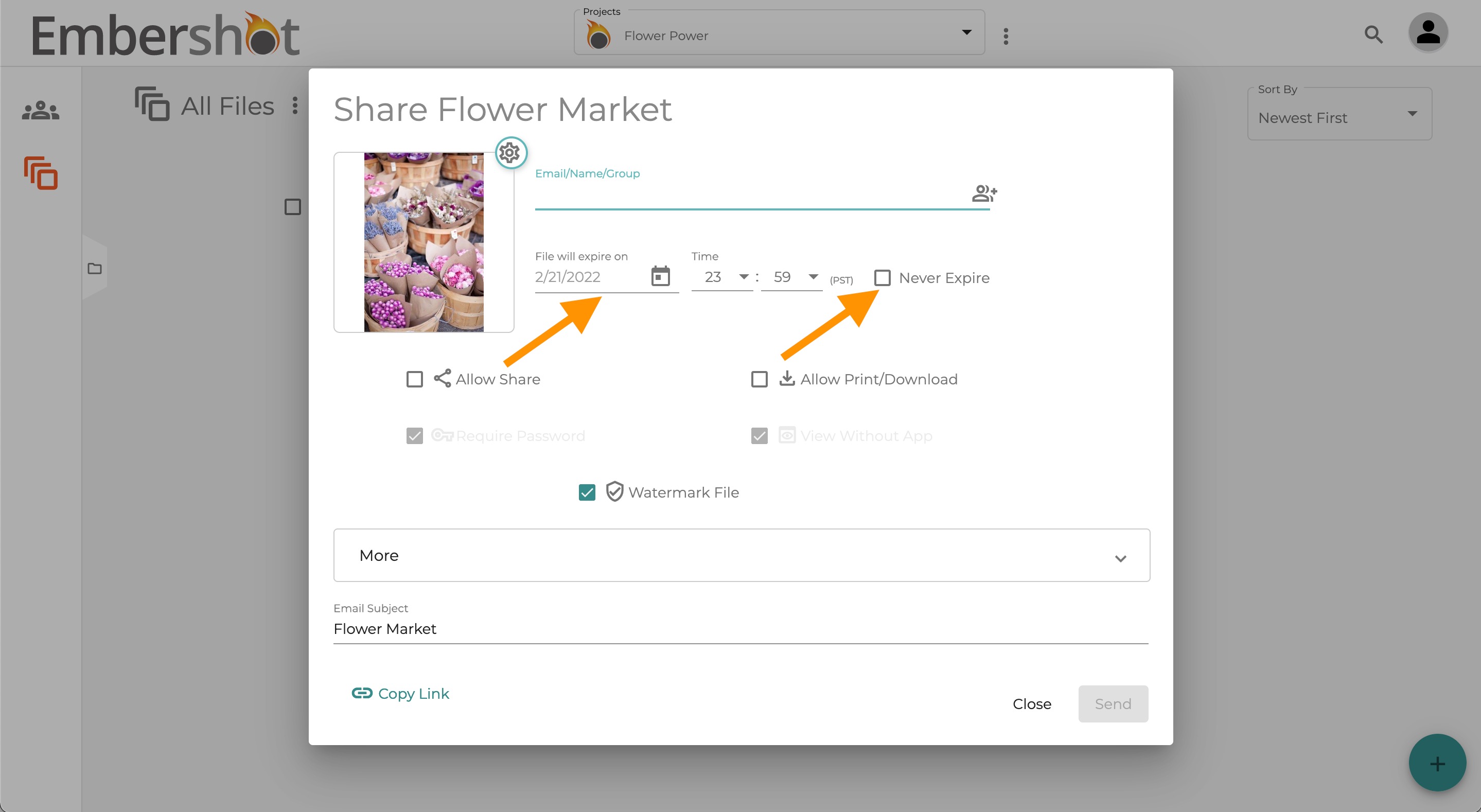
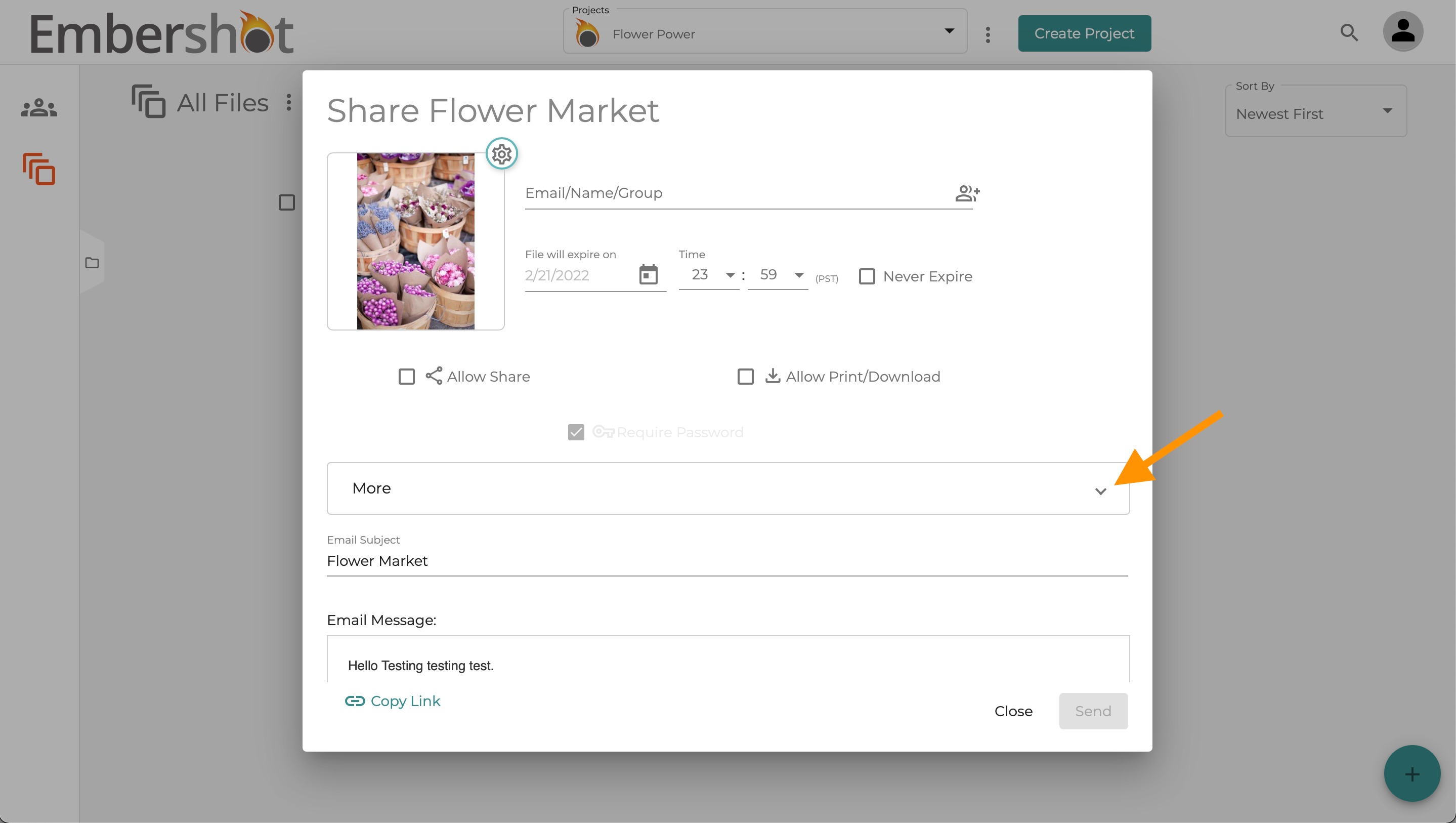
Step 6: You can adjust the expiration date of the file by clicking on the date in the 'File will expire on' field. You can also make the file available to a user infinitely by clicking the 'Never Expire' field.
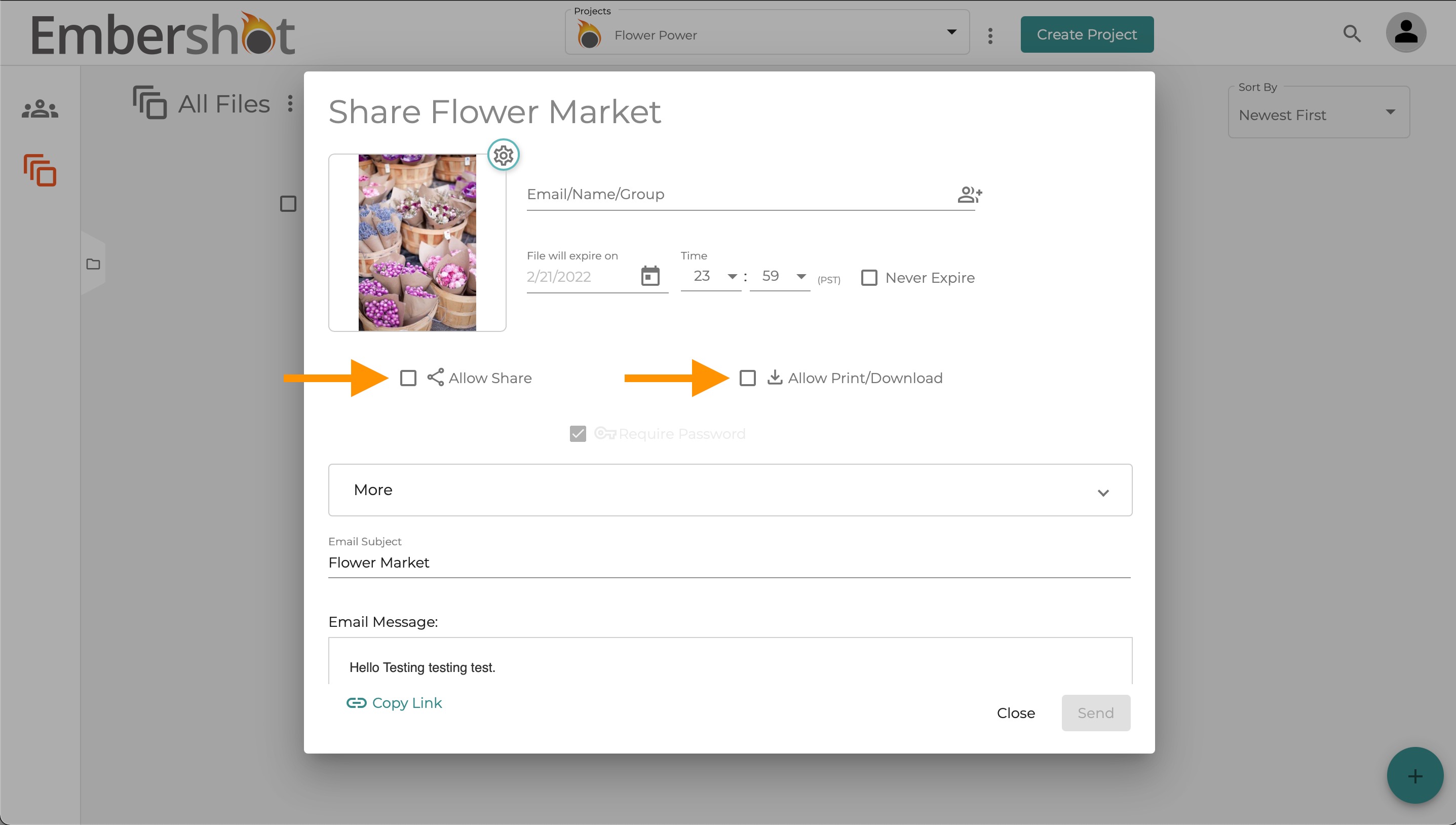
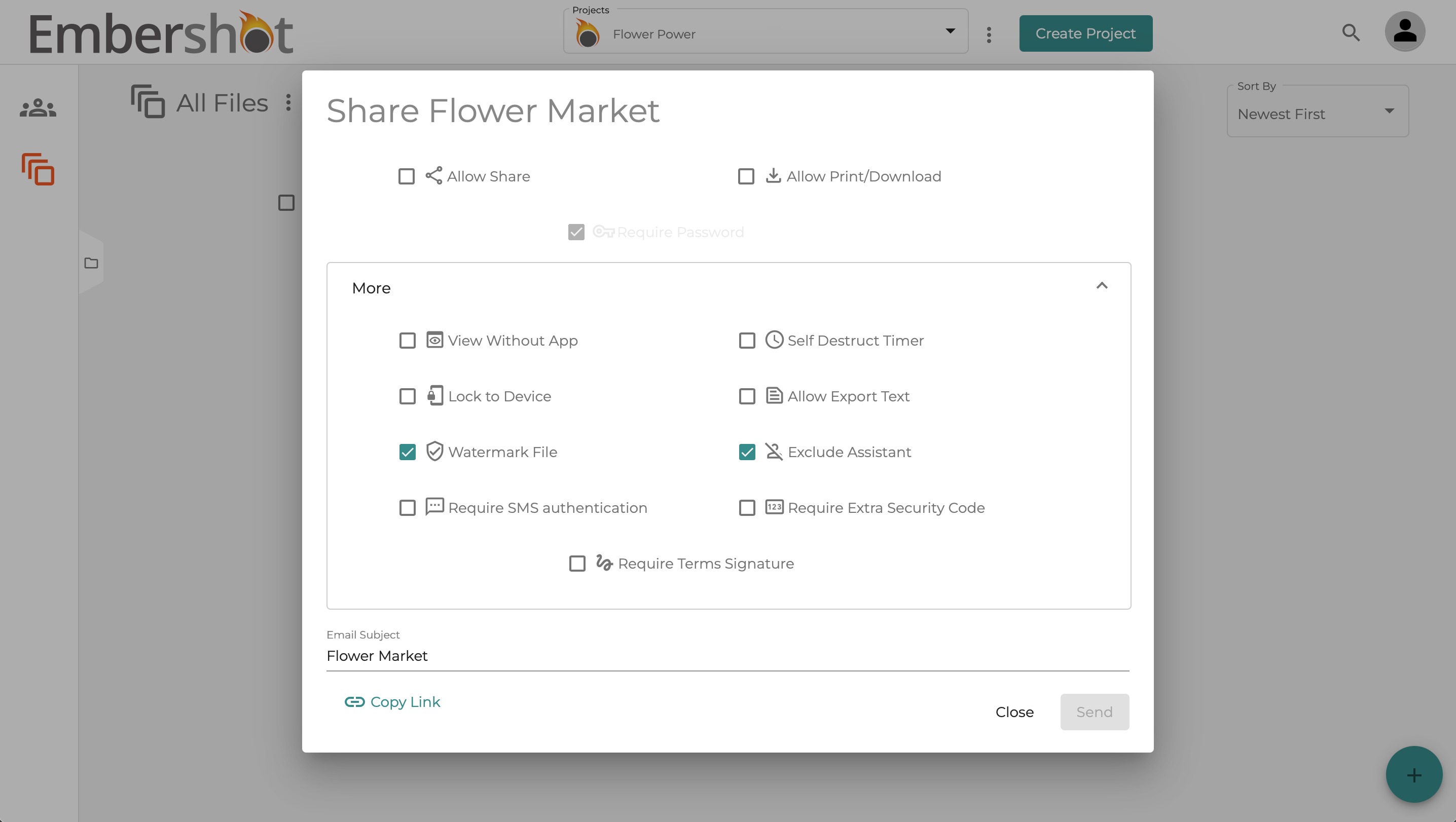
Step 7: Select the 'Allow Share' or 'Allow Print/Download' if you wish to added those security permissions to the file you are sharing. 'Require Password' is selected by default and can only be unselected by upgrading to an Enterprise Account.
Note: Click 'More' to change other security permissions before sending file
Step 8: Enter message for email
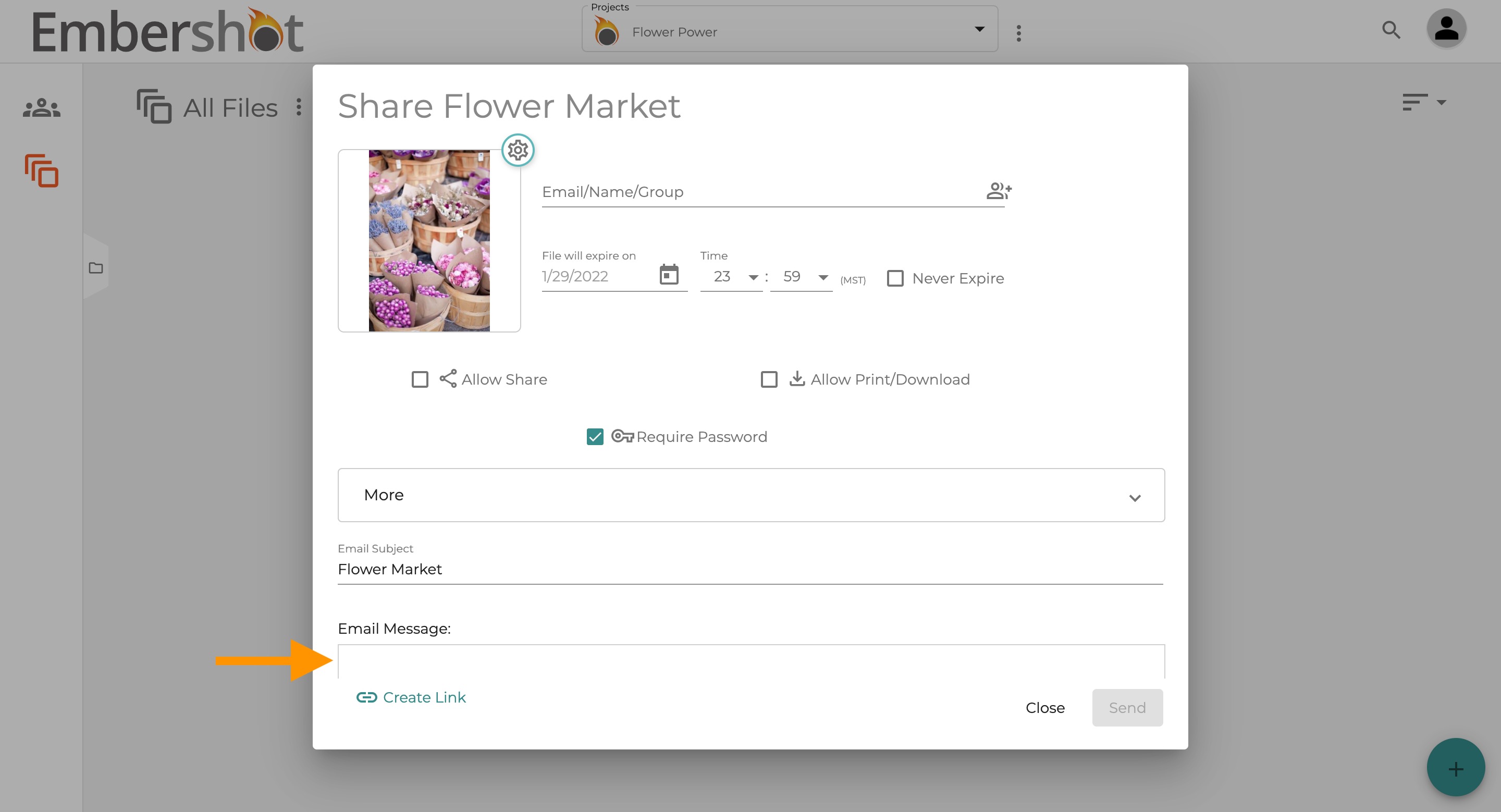
Step 9: Click 'Send'